
See the situation.
Your client pipeline, priorities, and connected tools give you a place to check in before the day takes over.
CLIENTS + CONTEXTControl, without chaos.
You run the business.
This is where you see it.Clients, follow-ups, revenue, and daily work. One private console, installed in accounts you control.
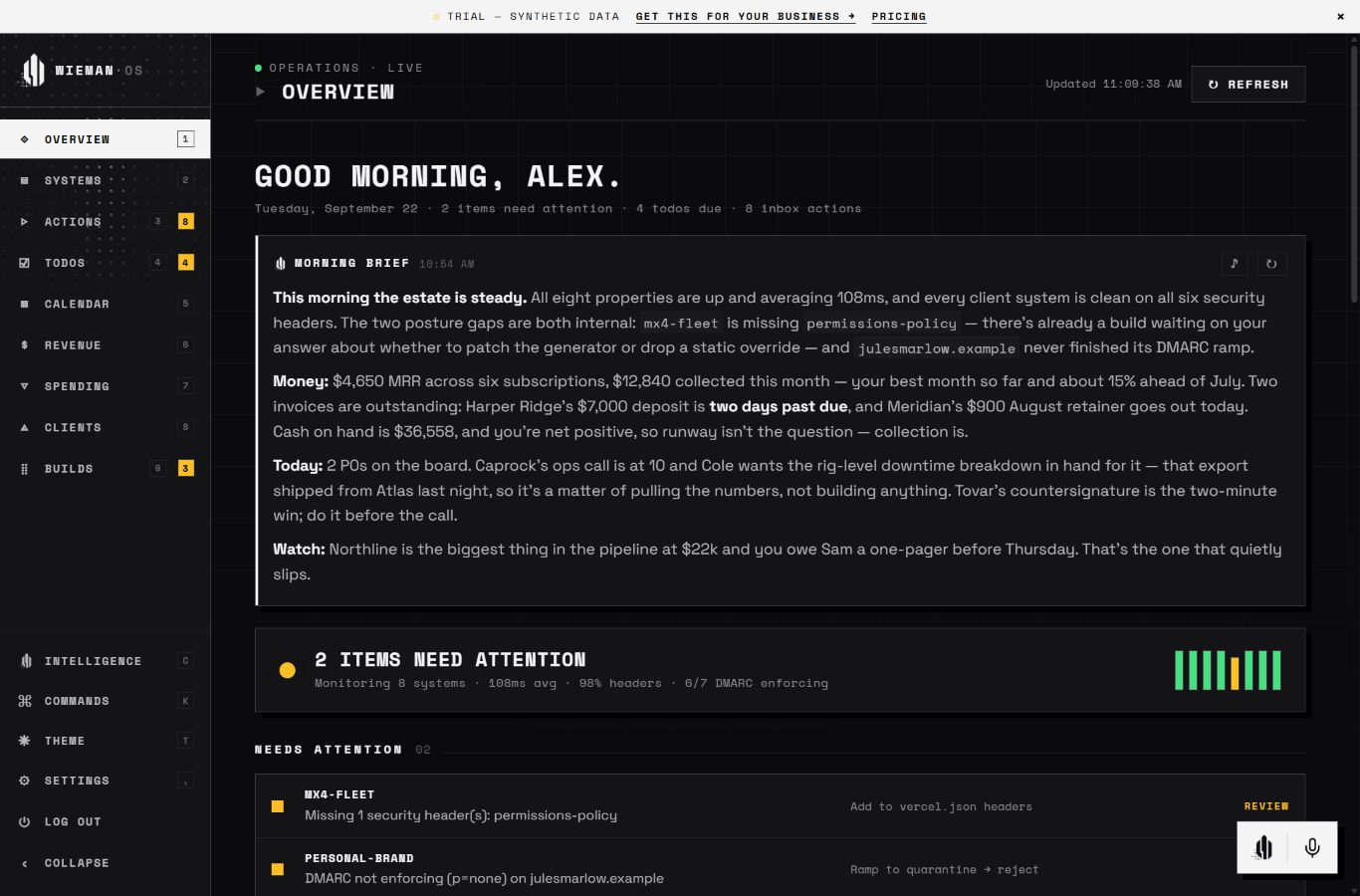
Clients, open work, and the next thing that needs you. Start with the whole picture, then go straight to the detail.
For the founder who is also the sales team, the project manager, and the person doing the work.
Your client pipeline, priorities, and connected tools give you a place to check in before the day takes over.
CLIENTS + CONTEXTKeep tasks and follow-ups close. Ask the connected AI copilot for help with the context, then review its response.
PRIORITIES + FOLLOW-THROUGHWork from a console you control. You choose the connections, review the output, and make the decisions.
YOUR JUDGMENT, ALWAYSBuy the software. Run it in your accounts. Keep using the version you receive.
Check your setup fitNo required Wieman subscription.
Hosting, database, and AI are billed separately.
Comfortable with a technical setup? Go self-serve. Want a person alongside you? Choose assisted.
Your console. Your accounts. Your pace.
$799ONE TIME
$799 software download.
Provider costs and applicable tax are extra.
The same product, with setup help.
$2,499ONE TIME
$799 software download + $1,700 optional setup help.
Provider costs and applicable tax are extra.
Know the running costs. Budget approximately $45/month for Vercel Pro and Supabase Pro combined, plus metered AI paid to your provider. Optional services, usage, and taxes can add to that. Check current Vercel and Supabase pricing.
Check the fit. Keep the choice yours. Available to U.S. businesses only. One business, one operator. Perpetual use of the delivered version; no resale rights. 14-day full refund policy. Review setup requirements before buying
Confirmed payment unlocks your private setup workspace and source download.
Follow the guided checks to deploy in Vercel and Supabase. Installation is required.
Authorize your tools, check the connections, and start with your own business data.
Assisted setup follows the same path, with scheduled help. You stay in control of account creation and permissions.
A working tool, not a magic button.
Here is what you are buying.
Wieman OS is for a solo operator running a client-service business: an agency, software studio, consulting practice, or automation business. It is one private console per business, not a multi-user team platform. Individual team accounts and permission roles are not included. Use the setup fit check before buying if you are unsure.
No. This is a one-time software purchase that you install in your own Vercel and Supabase accounts. You receive the source package and a license for perpetual use of the delivered version by one business, plus 12 months of released updates. Resale and redistribution are not included. There is no required Wieman subscription; connected services still depend on their providers.
You create your hosting and database accounts, run the guided installation steps, and authorize the tools you want to connect. Self-serve is for someone comfortable following technical instructions. Assisted setup includes help, but still needs your participation in creating accounts and granting permissions. Neither option is an instant, fully managed service.
Client pipeline and todos are built in. Supported connections include Google for Gmail and Calendar, Stripe for USD-only revenue reporting, Anthropic for the AI copilot, and supported hosting tools for system status. Stripe reporting reads up to 1,000 subscriptions and 1,000 invoices; mixed currencies or incomplete data are withheld, not converted or shown as zero. Permissions, credentials, and any provider approvals are your responsibility.
Hosting, database, AI, optional services, usage overages, and taxes are separate from this purchase and paid directly to your providers. Budget approximately $45/month for Vercel Pro and Supabase Pro combined, plus metered AI. Provider pricing may change. A consumer AI subscription does not cover the API usage that powers your console.
Your installation stores its data in your database and reads the services you connect. Using the copilot sends relevant conversation and retrieved records to your selected AI provider. Review responses before acting: AI can be inaccurate or incomplete. Sensitive actions, such as creating an invoice, require confirmation. The public demo uses sample data and sample responses, not your accounts.
You can request a full refund within 14 days of purchase under the refund policy. Both options include 30 days of installation email support. Assisted setup adds two 60-minute setup and walkthrough sessions, up to three supported integrations, and 14 days of follow-through after those sessions. Custom development, migrations, unlimited consulting, and ongoing account administration are separate.
Open the demo. Take a look around.
Decide whether it belongs in your working day.